

Apple Intelligence is now built into every recent iPhone, iPad and Mac. It rewrites your messages, summarises your notifications, answers through a new AI-powered Siri, creates images and emoji, and hands some requests to ChatGPT. Some people love it. Many do not.
Here is the honest answer up front: on iOS 26 and earlier, one master switch turns Apple Intelligence off in a single tap. On iOS 27, Apple removed that switch, so you have to turn the features off one by one. This guide covers both.
Before You Start: Check Your Device and iOS Version
Apple Intelligence only runs on Apple silicon. On iPhone, you need an iPhone 15 Pro or Pro Max, or any iPhone 16 or newer. On iPad and Mac, you need an M-series chip. If your device is older, Apple Intelligence was never running on it.
Next, check your iOS version: open Settings > General > About. On iOS 26 or earlier, use the master switch below. On iOS 27, skip to the iOS 27 section. And decide how far you want to go — if only the notification summaries bother you, switch off just those; for a complete switch-off, work through every section, including the Screen Time block at the end.
How to Turn Off Apple Intelligence on iOS 26 (the Master Switch)
If your iPhone or iPad is still on iOS 26, this takes about ten seconds:
- Open the Settings app.
- Scroll down and tap Apple Intelligence & Siri.
- Turn off the Apple Intelligence toggle at the top.
- Tap Turn Off Apple Intelligence to confirm.
That one switch disables nearly everything at once: the AI-powered Siri, Writing Tools, notification summaries, Genmoji, Image Playground, Image Wand, Visual Intelligence and the ChatGPT extension. It does not delete the Image Playground app — long-press its icon and choose Remove App, then Delete App.
How to Turn Off Apple Intelligence on iOS 27 (No Master Switch)
iOS 27 gave Siri a long-awaited AI revamp, turning it into a more conversational assistant with its own app — and Apple removed the single switch that used to shut Apple Intelligence down system-wide. You can still turn off most of the AI features: work through the sections below, skipping any feature you are happy to keep.
1. Turn Off the New Siri AI — or Switch Back to Classic Siri
To turn Siri off completely, open Settings > Siri, scroll to the bottom, tap Turn Off Siri and confirm. If you still want a voice assistant for simple jobs like timers and music, tap Turn On Siri on that same screen and choose Use Siri Classic — the older Siri without the AI chatbot behaviour.
To stop Siri listening for voice commands, go to Settings > Apple Intelligence & Siri > Talk & Type to Siri and turn off Listen for “Hey Siri” and Type to Siri.

2. Turn Off AI Summaries in Messages, Mail and Notifications
Apple Intelligence summarises your messages, emails and notifications — and it has famously got some of those summaries embarrassingly wrong. Each one has its own switch.
Messages: open Settings > Apps > Messages and turn off Summarize Messages. Mail: open Settings > Apps > Mail and turn off Summarize Message Previews. Notifications: open Settings > Notifications > Summarize Notifications and switch it off — or leave the main switch on and turn off individual apps in the list on that screen. While you are there, also turn off Prioritize Notifications.
3. Turn Off Smart Replies and Other AI Suggestions
To stop Apple Intelligence drafting email replies in your writing style, open Settings > Apps > Mail and turn off Personalize Smart Replies. In the Phone app, go to Settings > Apps > Phone and turn off Suggestions in Voicemail, which stops AI suggestions based on your voicemail transcripts. On the same screen, go to Phone > Apple Intelligence & Siri and turn off Show When Calling, so it stops showing extra information, like a reservation number, when you call a business. And in the Journal app, open Settings > Apps > Journal and turn off Get Writing Prompts.
4. Block Writing Tools and Image Generation With Screen Time
Writing Tools and image generation have no toggle in their own settings. The only way to block them is through Screen Time, which hides them from your menus completely:
- Open Settings and tap Screen Time.
- Tap Content & Privacy Restrictions and switch them on.
- Tap Intelligence & Siri (on some versions, just Siri).
- Tap Writing Tools and choose Don’t Allow.
- Go back, tap Image Creation, and choose Don’t Allow — this blocks Image Playground, Genmoji and Image Wand.
- Set Extensions to Don’t Allow to stop Apple Intelligence handing requests to outside services such as ChatGPT.
Note that Content & Privacy Restrictions affect other settings too, so if you share your iPhone with children, check you have not locked something they need.
5. Turn Off the ChatGPT Extension
With your permission, Siri can send some requests to ChatGPT. To keep your requests inside Apple’s system, open Settings, tap Apple Intelligence & Siri, tap ChatGPT under Extensions, and turn off Use ChatGPT.
6. Turn Off Visual Intelligence and Camera Control
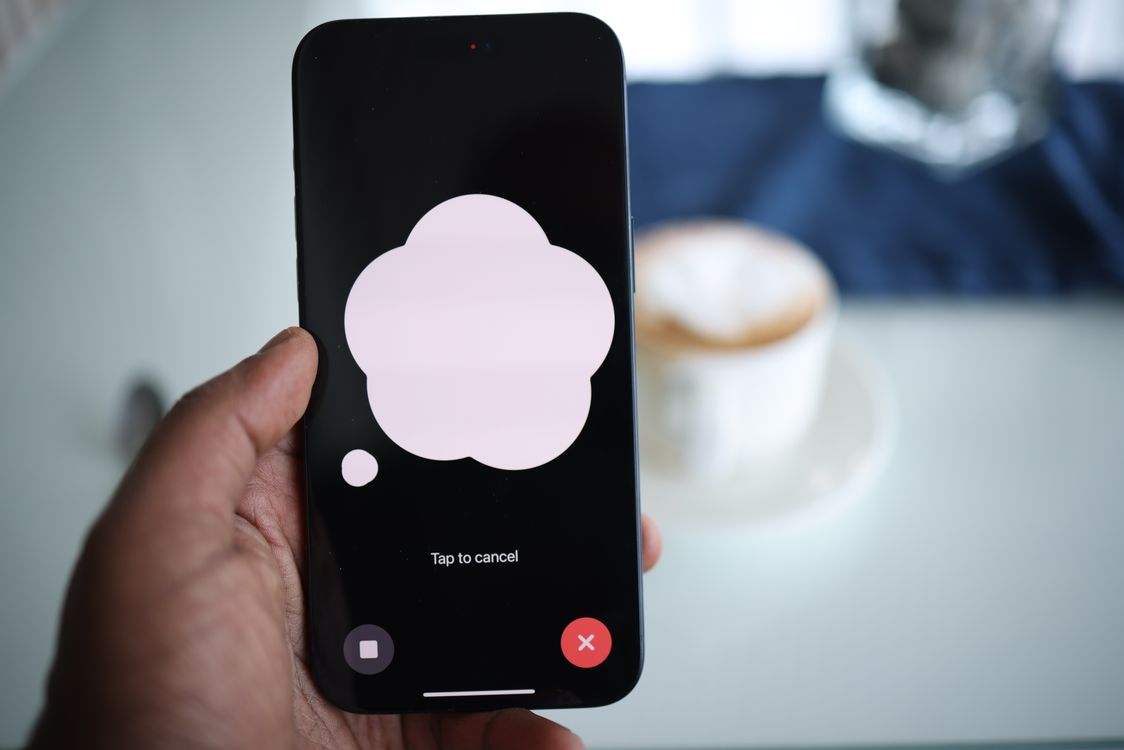
Visual Intelligence identifies objects, translates text and looks things up through the camera — and there is no way to disable it on its own. Switching off Apple Intelligence entirely is the only way to remove it. You can reduce how often it appears: go to Settings > Accessibility > Camera Control and turn off Camera Control, and go to Settings > General > Screen Capture and turn off Automatic Visual Look Up.
How to Turn Off Apple Intelligence on iPad and Mac
On iPad, the steps are the same as on iPhone: open Settings, tap Apple Intelligence & Siri, and turn off the toggle on iPadOS 26. On iPadOS 27, use the per-feature steps above.
On a Mac, open System Settings from the Apple menu, click Apple Intelligence & Siri, and turn off the toggle. If the master toggle is not there on the newest macOS, use the per-feature controls: block Writing Tools and image creation in System Settings > Screen Time > Content & Privacy > Intelligence & Siri, turn off email summaries in Mail > Settings > View, and turn off the ChatGPT extension in System Settings > Apple Intelligence & Siri > ChatGPT.
What You Lose — and What Stays
Switching off means losing the AI version of Siri, Writing Tools, notification and message summaries, Genmoji, Image Playground, Image Wand and Visual Intelligence. Switch to Siri Classic and you keep a voice assistant, but it will not hold a conversation the way the new Siri does. One thing that stays is the Clean Up tool in Photos, which keeps working with Apple Intelligence off. And Apple Intelligence is opt-in — if you change your mind later, you can switch it back on from the same settings screen.
Does Turning It Off Free Up Storage?
Apple’s on-device AI models take up roughly 3 GB on an iPhone or iPad and around 5 GB on a Mac, according to Intego’s testing. Some guides report that space is freed when you switch Apple Intelligence off; others, including SlashGear, note that it stays used until you erase the device and set it up again without enabling Apple Intelligence. So do not switch it off only to save storage — if space is your real problem, our guide to freeing up space on your iPhone will save you far more room.
Quick Checklist: Is Apple Intelligence Really Off?
- Apple Intelligence toggle off (iOS 26), or all steps above done (iOS 27)
- New Siri off or set to Siri Classic; “Hey Siri” listening off
- Summarize Messages, Summarize Message Previews and Summarize Notifications off
- Personalize Smart Replies, Suggestions in Voicemail and Get Writing Prompts off
- Screen Time: Writing Tools, Image Creation and Extensions set to Don’t Allow
- ChatGPT extension off; Image Playground app deleted if unwanted
- Restart your device — some changes only take full effect after a restart
If an AI feature still appears, check your iOS version again: Apple moves these toggles between updates. And repeat the steps on each device you own — turning it off on your iPhone does not switch it off on your Mac.
The Bottom Line
On iOS 26, turning off Apple Intelligence is one switch. On iOS 27, it is a ten-minute job across several settings screens — but it is still entirely possible, and this guide covers every toggle you need. Switch off everything, or just the features that annoy you; you can always switch it back on later.
If you are cutting back on AI across all your devices, see our guide to turning off AI features in Windows 11 — and if Meta’s assistant is the one bothering you, we have a step-by-step guide to turning off Meta AI on WhatsApp, Instagram, Facebook and Messenger too.