
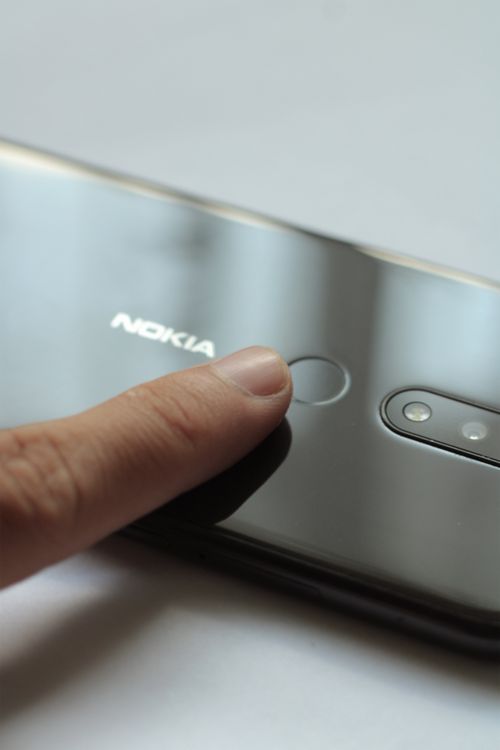
Passwords are the weakest link in online security. They get reused, guessed, stolen in data breaches and fished out of people by fake login pages. Passkeys fix all of that at once, and in 2026 they have finally gone mainstream. Google, Apple and Microsoft all support them, and WebAuthn Level 3, the technology behind them, became an official web standard in August 2026. This guide shows you how to set up passkeys on iPhone, Android, Windows and Mac in about five minutes per account.
A passkey replaces your password with a pair of cryptographic keys. The private key stays locked inside your device, protected by your fingerprint, your face or your PIN. The public key sits on the website’s server. When you sign in, your device proves it holds the private key, and you confirm it is really you with a biometric check. Nothing you type can be stolen, and a fake site cannot use your passkey, because each one is tied to the real website it was made for.
What Is a Passkey and How Does It Work?
Think of it as a digital key only your device holds. Creating one generates two linked keys: the public key goes to the website, the private key never leaves your device. At sign-in, the website sends a challenge, your device signs it, and the website checks the signature, all in a second.
For you, it is simple: tap “Sign in with a passkey”, then touch your fingerprint sensor or glance at your phone. The passkey is stored in a credential manager, such as iCloud Keychain on Apple devices, Google Password Manager on Android and Chrome, or Windows Hello on a PC. Most passkeys sync across your devices automatically, so one created on your iPhone is available on your Mac, and one created in Chrome follows you to your other computers.
Before You Start: What You Need
First, turn on a screen lock: a PIN, fingerprint or face unlock. A passkey is only as strong as the lock on the device that holds it, so Google and Apple both require one. Second, update your software. As a rough guide, you need iOS 16 or later, Android 9 or later, Windows 10 or later, or macOS Ventura or later, plus a current browser such as Chrome 109, Safari 16, Edge 109 or Firefox 122 or newer.
Third, decide where your passkeys will live: the built-in manager for your devices (iCloud Keychain, Google Password Manager or Windows Hello), or a cross-platform manager such as Bitwarden or Proton Pass if you mix ecosystems. Start with Google, Apple and Microsoft, the master keys to your email, files and other accounts.
How to Set Up a Passkey for Your Google Account
Your Google account is the best place to start, because one passkey works on Android, iPhone, Windows, Mac and ChromeOS. On the phone or computer where you want the passkey, open your browser and go to myaccount.google.com/signinoptions/passkeys, or use the shortcut g.co/passkeys. Sign in if asked, and confirm it is you with your current password or two-step verification.
Tap “Create a passkey” and confirm with your fingerprint, screen lock or Windows Hello PIN. The passkey is created in seconds and saved automatically.
Test it right away by signing out and back in with the passkey option.
How to Set Up Passkeys on iPhone and Mac
On Apple devices, passkeys live in iCloud Keychain and appear in the Passwords app. First, turn on iCloud Keychain. On your iPhone, go to Settings, tap your name at the top, then iCloud, then Passwords, and turn on “Sync this iPhone”. On iOS 17 and earlier the same setting is called “Passwords and Keychain”. Also turn on two-factor authentication for your Apple Account, because Apple requires it for passkey syncing.
Apple has no central page for passkeys: create them inside each site or app. Sign in as usual, open the site’s security settings, choose “Create a passkey”, confirm with Face ID, Touch ID or your passcode, and it is saved in the Passwords app and synced to your other Apple devices.
On a Mac, Safari offers the same flow. A passkey on your iPhone can also approve sign-ins on a nearby Mac or Windows PC by scanning a QR code.

How to Set Up Passkeys on Windows and for a Microsoft Account
On Windows 11, passkeys are unlocked with Windows Hello: your PIN, fingerprint or face. First, set up Windows Hello if you have not already. Go to Settings, then Accounts, then Sign-in options, and add Windows Hello Face, Fingerprint or PIN. A PIN is the minimum, and a fingerprint or face is more convenient if your PC supports it.
To add one to your Microsoft account, sign in at account.live.com/proofs/manage, choose “Add a new way to sign in or verify”, then “Face, Fingerprint, PIN, or Security Key”, and confirm with Windows Hello.
For other websites on Windows, sign in to the site, open its security settings, choose the passkey option, and confirm with Windows Hello.
How to Set Up Passkeys on Android
Android has the smoothest passkey experience of any platform, because passkeys are built into Google Password Manager. Check that your phone runs Android 9 or later and has a screen lock set up. Then open Settings, go to Passwords, passkeys and autofill, and make sure Google is selected as your autofill service. On Android 14 and later, you can choose a third-party password manager as your passkey provider instead.
To create one, open Chrome, sign in to a site that supports passkeys, open its security settings, choose the passkey option, and confirm with your fingerprint or screen lock. It syncs to every Android device and Chrome browser on the same Google account.
Your phone can also approve laptop sign-ins by scanning a QR code, and Android 14 and later lets you move passkeys between compatible managers.
Back Up Your Passkeys Before You Need Them
Keep a backup way into every important account: a passkey on your phone and another on your laptop, plus a hardware security key or printed recovery codes stored somewhere safe.
With synced passkeys, a lost phone is a minor problem: sign in to the new phone with the same account and they come back. Set up your backups now, not after you need them.
Common Passkey Problems and Fixes
If a website never offers the passkey option, it may not support passkeys yet. Many big sites do, but smaller ones still rely on passwords, so keep a strong, unique password and two-factor authentication for those. If your phone asks for a passcode instead of your fingerprint, that is usually a security rule after a restart, 48 hours without unlocking, or too many failed attempts. Enter the passcode once and biometrics come back.
If a passkey fails on one device but works on another, check both are signed in to the same account with syncing on. Never create a passkey on a public or shared computer: anyone who can unlock it can use its passkeys.

Frequently Asked Questions
Do passkeys replace passwords completely? Not yet. Use passkeys where sites support them and keep passwords for the rest; a password manager holding unique passwords, plus passkeys wherever offered, is the best combination.
Are passkeys safer than a strong password? Yes, in the ways that matter most. A passkey cannot be guessed, reused, leaked in a breach or stolen by a fake login page, and your fingerprint never leaves your device. A password, however strong, can still be phished.
The Bottom Line
Passkeys are the biggest improvement in everyday online security in years, and setting them up takes less time than choosing a new password. Start with Google, Apple and Microsoft, then add your email, bank and shopping accounts. Soon most sign-ins will be a fingerprint or a glance, with no password to remember, reuse or lose. Set up your first passkey today, and keep a backup sign-in method for the accounts that matter most.