
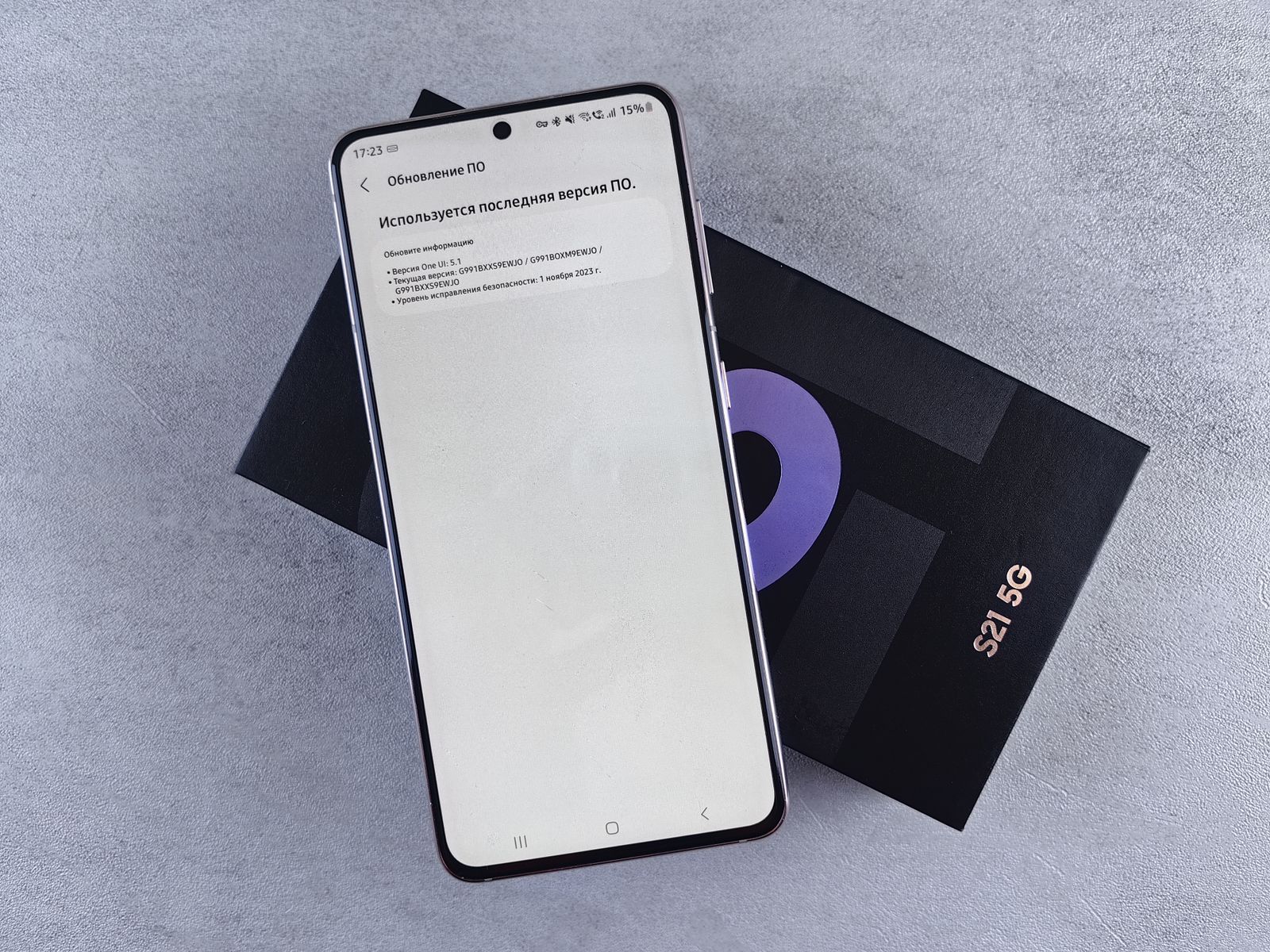
Your phone, laptop and tablet all want to update themselves — and most of the time, you should let them. Every month, Apple, Google and Microsoft release fixes for security holes criminals are already trying to exploit. The people who get hacked are rarely the ones with the weakest passwords. More often, they are the ones who kept tapping “Remind me later” for six months.
Turning on automatic updates is the single easiest security habit you can build. This guide shows you how to turn on automatic updates on every device you own: iPhone, iPad, Android, Windows 11, Mac, your web browser, your apps and your Wi-Fi router.
Why automatic updates matter
Updates do two jobs at once. Some add features, like the Windows 11 November 2026 update, which brought a customisable right-click menu and a way to reinstall Windows without a USB drive. The more important job is invisible: patching security flaws.
When a company fixes a security hole, it usually says so publicly. Attackers read those announcements and race to attack devices that have not installed the fix yet. CISA, the United States cybersecurity agency, puts it simply: install updates as soon as possible, and turn on automatic updates so devices install fixes on their own.
Before you start: a five-minute checklist
Do these four things first. Plug the device in, or make sure the battery is above 50 percent — a device that dies mid-install takes much longer to recover. Connect to Wi-Fi, because system updates are often several gigabytes. Back up anything you cannot afford to lose: iCloud Backup on iPhone, Settings then System then Backup on Android, OneDrive on Windows. And note down your passwords, because after a major update some devices ask you to sign in again.
How to turn on automatic updates on iPhone and iPad
- Open Settings, then tap General, then Software Update.
- If an update is listed, plug the phone in, connect to Wi-Fi, and tap Download and Install.
- On the same screen, tap Automatic Updates.
- Turn on Automatically Install. Your iPhone will now download updates and install them overnight while it charges on Wi-Fi.
- Also turn on Security Responses and System Files if you see that option — small, fast security fixes Apple delivers between full iOS releases.
Automatic app updates are a separate switch. Go to Settings, then App Store, and turn on App Updates. Without this, apps only update when you open the App Store and tap Update All.
How to turn on automatic updates on Android
Menu names vary by manufacturer, so on Samsung, Motorola or OnePlus phones, use the search box at the top of Settings and type “update”. These steps work as written on Pixel phones.
- Open Settings, then tap System, then Software updates.
- Install anything waiting. Google recommends charging to at least 75 percent first.
- Turn on the Auto download over Wi-Fi switch. Pixel phones install security updates in the background and only ask you to restart.
- Check how fresh your phone is. Go to Settings, then About phone, then Android version, and look at the security update date. If it is more than a year old, your phone may be near the end of its support life.
- Turn on automatic app updates. Open the Play Store, tap your profile picture, then Settings, then Network preferences, then Auto-update apps, and choose Over Wi-Fi only.

How to turn on automatic updates on Windows 11
Windows 11 already downloads and installs updates automatically by default. Your job is to confirm it is on, clear any pause, and stop restarts from interrupting your work.
- Click Start, then Settings, then Windows Update at the bottom of the left-hand list.
- Click Check for updates. If anything downloads, let it finish and restart when asked.
- If you see a “Pause updates” banner, turn it off — paused updates are the most common reason a Windows PC falls behind.
- Turn on Get the latest updates as soon as they’re available if you want new features sooner.
- Set your Active hours on the same screen, so Windows only restarts outside those hours.
Still on Windows 10? Microsoft ended regular support on October 14, 2025, so it no longer gets free security fixes. Eligible PCs on version 22H2 can buy Extended Security Updates until October 12, 2027, but the real fix is to move to Windows 11.
How to turn on automatic updates on Mac
- Click the Apple menu, then System Settings.
- Click General in the sidebar, then Software Update.
- Install anything waiting.
- Click the small info button next to Automatic Updates.
- Turn on Check for updates, Download new updates when available, Install macOS updates, Install application updates from the App Store, and Install Security Responses and system files. Then click Done.
That last option matters most. Security Responses are Apple’s rapid fixes for actively exploited flaws, and they install without a full restart in many cases.
Turn on automatic updates in your browser and apps
The browser opens every website you sign in to, and an out-of-date browser is one of the easiest ways to get caught by a malicious page. Browsers update themselves, but only when you close and reopen them — and many people leave the same window open for weeks.
In Chrome, click the three dots, then Help, then About Google Chrome. Chrome checks for an update and installs it; if you see a Relaunch button, click it. In Edge, the same screen is under Settings, then About Microsoft Edge. Firefox updates through Help, then About Firefox, and Safari updates with macOS.
On Windows, open the Microsoft Store, click your profile picture, then Settings, and turn on App updates. For apps that update themselves, such as Zoom and Spotify, open each app’s settings once and look for an automatic update checkbox.
Be careful where updates come from. Only install them from a device’s own Settings app, its official store, or the maker’s website — never from a pop-up, a text message or an email link. Fake update prompts are a classic scam, so learn how to spot a phishing email before you click anything suspicious.
Don’t forget your Wi-Fi router
The router sits between every device in your house and the internet, and it runs software too. A router with a known flaw can expose everything behind it, no matter how well your phones and laptops are patched.

Most modern routers update themselves, but the switch is often off by default. Open your router’s app — TP-Link, Netgear, ASUS, Eero and Google Nest all have one — and look for a firmware update section and an automatic update toggle. Without an app, open the admin page in a browser using the address on the label underneath the device.
If your internet provider supplied the router, ask them whether it updates itself. If the router is more than five years old with no recent firmware update, the manufacturer may have stopped supporting it.
What to do when an update fails
Sometimes the switch is on and nothing happens. First, check storage: a phone or laptop with almost no free space cannot download an update. Second, check the date and time — a device with the wrong date can fail to verify an update package, so turn on Set automatically and try again. Third, restart the device, then check for updates manually once more.
If none of that works, check whether the device is still supported. Search the manufacturer’s website for your exact model and “end of support”. If support has ended, no setting will bring updates back: replace the device, or keep it off anything sensitive — no banking, no email, no passwords, and ideally no Wi-Fi at all.
Frequently asked questions
Do automatic updates use a lot of data?
System updates can be several gigabytes, so set them to download over Wi-Fi only where the option exists. Monthly security patches are typically a few hundred megabytes.
Will automatic updates restart my computer while I am working?
Not if you set it up right. Windows uses Active hours to avoid restarting during your working day, and iPhones install overnight while charging. The restarts that catch people out almost always happen on devices where updates were paused for weeks.
Should I install updates the day they come out?
For security updates, yes. For big feature updates, waiting a few days is reasonable. That is why the security fixes and the “get the latest updates” options are separate switches: security first, features when you are ready.
The 30-minute habit that protects everything else
Walk through the sections above once — phone, computer, browser, apps, router — and turn every switch on. From now on, your devices will patch themselves overnight, and the security fixes that matter most will arrive before attackers can use the flaws they close. Check the whole list again in six months: devices get replaced, settings get reset, and a new gadget joins the household. For a deeper look, read the full device-by-device update guide.