
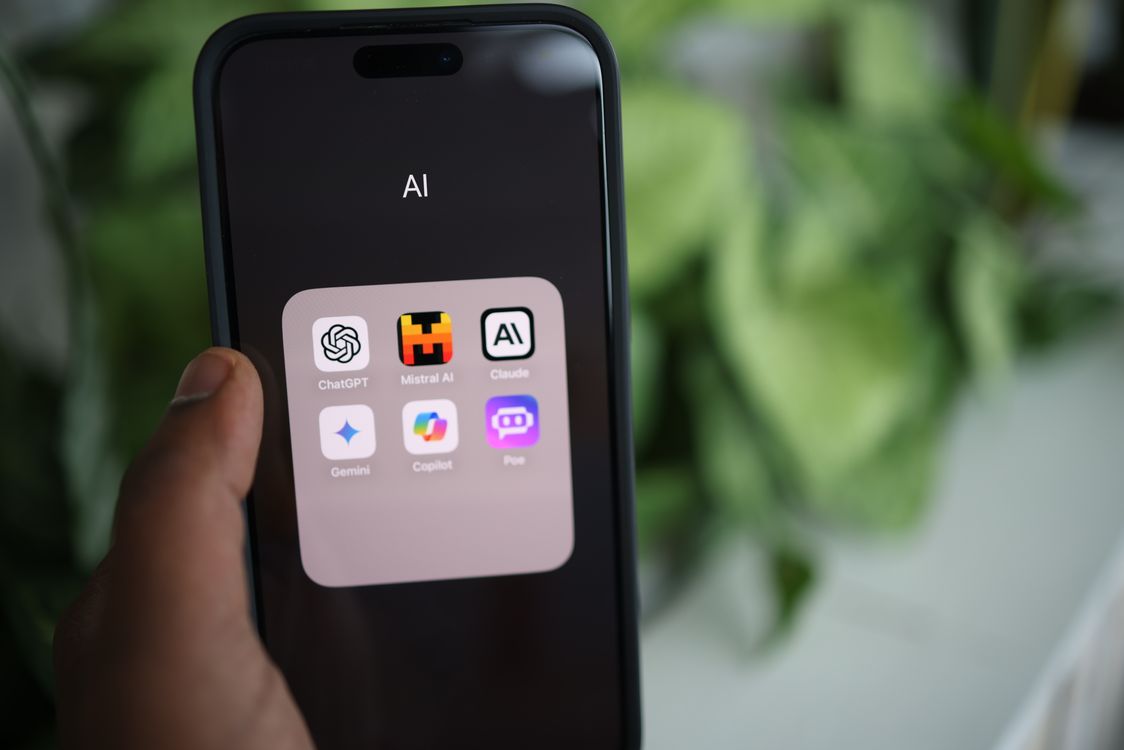
If you built a custom helper in Google Gemini — a Gem that rewrites your emails or drafts replies in your voice — today is the day it stops working the way you know it. On November 17, 2026, Google is turning Gems read-only for personal accounts, and on December 17 they disappear completely. The replacement is called Skills, and learning how to create Gemini Skills takes about five minutes and costs nothing. This guide shows you every method. AI assistants are changing fast everywhere — OpenAI’s new ChatGPT Wallet is one recent example.
What Are Gemini Skills?
A Gemini Skill is a saved set of instructions that tells Gemini how to handle a recurring task. You write the instructions once — the tone, the format, the rules — and call the skill up in any chat instead of retyping the same long prompt. Skills replace Gems, but they work in a better place: a Gem had to be opened on its own, while a Skill works inside any normal chat — type a slash, pick the skill, and keep talking, or let Gemini apply it automatically when it fits.
What Happens to Your Gems Today
Google announced the change on September 30, 2026. For personal accounts aged 18 and over: from November 17, 2026 — today — Gems become read-only. You can still open them, but you cannot use, edit or create new ones, and Google starts converting them into skills automatically. On December 17, 2026, Gems are removed entirely. Workspace accounts keep working until at least March 1, 2027. Do not simply wait for the automatic conversion: a skill can hold only 100 MB of files, and Google drops the largest files first. Audio, video, old Office formats such as .doc, .xls and .ppt, GitHub files and archives such as .zip are left behind entirely. Download anything you still need before December 17.
Before You Start: Check That Skills Are Available
Skills are rolling out gradually, so first check whether your account has them. Open the Gemini app on your phone, or gemini.google.com on a computer, and look for the Skills page. You need to be 18 or over on a personal Google account — that is the only requirement, and no Google AI subscription is needed. You also need Keep Activity switched on. If you cannot see a Skills option, update the app, sign out and back in, and check again tomorrow. Skills work in the mobile app, the Mac app and the web app, but they do not sync with Workspace apps.
How to Create Gemini Skills: Three Methods
There are three ways to create a skill, all free. The easiest is to ask Gemini to build one in a chat; the manual route gives you the most control. You can mix them: build the first draft with Gemini, then tidy it up by hand.
Method 1: Ask Gemini to Build It in a Chat
Start a new chat and describe the skill in plain words — for example, “Create a skill that rewrites my emails in a polite, professional tone and keeps them under 150 words.” Gemini will ask follow-up questions, then draft the skill with you. Review it, correct anything wrong, and save it. The whole exchange takes about five minutes.
Method 2: Build One Manually from the Skills Page
Open Gemini, click Customize in the sidebar — you may need to click More first — then click Skills at the top. Click Create, then Create manually, and fill in the three fields: a name, a short description and the instructions. The name matters: Google says Gemini decides whether a skill is relevant by reading only its name and description. Use lowercase words joined by hyphens, starting with a verb — email-rewriter beats my-email-thing — and write the description as one plain sentence saying what the skill does and when to use it.
Method 3: Upload a SKILL.md File
The same SKILL.md format also runs in Claude, ChatGPT, Microsoft 365 Copilot agents and GitHub Copilot. If you already have a skill file from one of those tools, import it directly: on the Skills page, click Create, then Upload, and select your SKILL.md file, or a folder or .zip with one in its top folder. Check the instructions still make sense in Gemini first — a skill written for a coding agent may assume tools Gemini does not have. To add reference files, download the new skill as a .zip, place its SKILL.md file in a folder named exactly like the skill with your files, and upload it with Replace skill.

How to Use a Skill in a Chat
In a chat thread, type a forward slash (/) and pick the skill from the list, or type @ if your app has the updated shortcut. Then write your request as normal, and Gemini follows the skill’s instructions. You can also let Gemini apply a skill automatically: if the skill is switched on and its description matches what you are asking, Gemini can pick it up on its own, even mid-chat. That is why the name and description matter — Gemini only reads those two fields when deciding whether a skill fits.
How to Move Your Gems to Skills Before December 17
Move your Gems yourself instead of trusting the automatic conversion. First, open the Gem and copy its name, description and instructions into a document — after today you can look at a Gem but not edit it, and after December 17 it is gone. Second, download each knowledge file into a folder named exactly like the skill you want, in lowercase with hyphens — customer-email-writer, for example. Leave out audio, video, old .doc, .xls and .ppt files, GitHub files and archives; if the folder is larger than 100 MB, remove the least important files first, because Google deletes the largest ones for you. Third, go to Customize, then Skills, then Create, choose Create manually, and paste in the name, description and instructions. Fourth, add the files back: download the new skill as a .zip, move its SKILL.md file into your folder, and upload it using Replace skill. Only 100 skills can be active at once, so pause the ones you rarely use.
How to Write a Skill Gemini Will Actually Use
Most weak skills fail in three ways: a vague name, a missing trigger and instructions that ramble. The name should say what the skill does, starting with a verb: summarise-meeting-notes, not meeting-helper. The description should say when to use it in one sentence, such as “Turns a pasted meeting transcript into decisions, owners and deadlines.” Write the instructions as short, direct rules — what the output should look like, how long it should be and what to leave out — and add a “When to use” section; Google’s own help article recommends this, because it stops a skill from triggering on the wrong request.

The Limits You Should Know
Skills are free, but not unlimited. A skill can hold only 100 MB of files. Only 100 skills can be active at once, although you can create more. You must be 18 or over on a personal account, or on a Workspace account with the feature enabled. Skills are still rolling out, so the controls may not appear for every account on the same day, and they do not sync between the Gemini app and Workspace apps. Some features may need a subscription for heavier use — Google has not said which.
Common Problems and Fixes
If the Skills page is missing, your account probably has not received the rollout yet — update the app, sign out and back in, and check again in a day or two. If a skill never triggers automatically, rewrite the description so it names the exact situation, add a “When to use” section, and test it with the slash command first: if it works when called manually, only the trigger needs work. If files disappeared during the move from a Gem, check the 100 MB total and the banned file types — audio, video, old Office files, GitHub files and archives are dropped, and oversized files are removed largest first. If Gemini uses the wrong skill, pause the one it picked and make each description as specific as possible. To edit or pause a skill later, open it from the Skills page — changes apply to your next chat. If you would rather switch AI assistants off entirely, see how to turn off Meta AI.
What to Do Today
First, open Gemini and check whether you can see the Skills page. Second, open each Gem you still use and copy its name, description and instructions into a document. Third, download any knowledge files you want to keep. Fourth, create one skill — the chat method if you want it fast, the manual method if you want control. Fifth, test it with a real request and fix the name and description if it does not trigger. Ten minutes of your own work beats trusting a conversion that drops files.
The Bottom Line
Gems go read-only today and disappear on December 17, but nothing you built with them has to be lost. Skills do the same job in a better place — inside any chat, on the free plan, with a file format other AI tools understand too. Learn how to create Gemini Skills once, move your best Gems across before the deadline, and they will keep working long after Gems are gone.
Sources: Android Police and TechInKey.