

Most people use AI the same way: type a question into a website or an app, and a faraway server does the thinking. But in 2026 there is another option. You can download an AI model and run it directly on your own phone or computer — no internet connection needed, no monthly fee, and no one else reading your prompts.
This is called running AI models locally, and it has become much easier in the last year. Free apps from Google and open-source developers now let ordinary users do it in minutes, on devices they already own. This guide explains what local AI is, what your device needs, and exactly how to set it up on Android, iPhone, Windows and Mac.

What Does Running an AI Model Locally Mean?
When you chat with ChatGPT or Gemini in a browser, your words travel to a company’s data centre, a giant model processes them, and the answer comes back. When you run a model locally, that whole process happens on your own device. The model — a file of a few gigabytes — sits on your phone or laptop, and your device’s processor does the work.
The models people run locally are usually “open-weight” models. That means the creators have published the model files for anyone to download and use. Google’s Gemma family is the best-known example, along with Meta’s Llama models, Microsoft’s Phi models and Mistral’s open models. They are smaller than the giant models behind ChatGPT, but the best of them are surprisingly capable at writing, summarising, answering questions and even understanding images.
Think of it like the difference between streaming a film and downloading it. Streaming is convenient, but downloading means you can watch it anywhere, nobody tracks what you watch, and it never buffers.
Why Run AI Models on Your Own Device?
There are four good reasons to try it.
1. Privacy. Your prompts never leave your device. If you want help drafting a personal letter, summarising private documents or brainstorming a business idea, nothing is sent to a server or stored in someone else’s logs.
2. It works offline. On a plane, in a rural area or during an internet outage, a local model keeps answering. That alone makes it useful for travellers, students and anyone with an unreliable connection.
3. It is free. There is no subscription and no per-message charge. Once you have downloaded a model, you can ask it as many questions as you like.
4. No waiting, no limits. Cloud AI services slow down at busy times and cap free users. A local model is always available, as long as your device is switched on.
There are trade-offs, of course. Local models are smaller and less knowledgeable than the biggest cloud models, and they run slower on older hardware. But for everyday writing, learning and brainstorming, the gap is smaller than most people expect.
What You Need Before You Start
Before downloading anything, check that your device can handle it. The key number is RAM — the memory your device uses while it works.
- At least 6 GB of RAM is the minimum for a small, useful model. Most phones and laptops sold in the last three or four years clear this easily.
- 8 GB of RAM or more is the sweet spot. This lets you run a 2-billion-parameter model comfortably, with room for your other apps.
- 12 GB of RAM or more opens the door to larger, smarter 4-billion-parameter models.
To check your RAM, Android users can open Settings, then About Phone. On iPhone, Apple does not publish RAM figures, but the iPhone 15 Pro and newer models have at least 8 GB, which is enough for the models in this guide. On Windows, go to Settings, then System, then About, and look for “Installed RAM”. On a Mac, click the Apple menu, then About This Mac.
You will also need a few gigabytes of free storage for the model files — a 2-billion-parameter model is roughly 2.6 GB, and a 4-billion-parameter model is around 3.7 GB. And you will need an internet connection for the one-time download. After that, everything works offline.
How to Run AI Models Locally on Android
The easiest way on Android is Google’s own free app, AI Edge Gallery. Here is how to set it up.
Step 1: Install AI Edge Gallery. Open the Google Play Store, search for “AI Edge Gallery” and install it. The app is free and published by Google.
Step 2: Pick a model. Open the app and browse the model list. For a first try, choose Gemma 3 1B or Gemma 4 E2B — these are small, fast and designed for phones. Tap the model to download it. The download is about 2.6 GB, so use Wi-Fi if you can.
Step 3: Start chatting. Once the download finishes, tap the model and start typing. You can ask questions, get help writing messages, or summarise text you paste in. Everything runs on your phone.
Step 4: Try image understanding. Some Gemma models can look at photos. Tap the image button, pick a photo from your gallery, and ask the model to describe it or answer questions about it.
If you want more choice, a second free app called PocketPal AI is worth trying. It is open source and lets you download models from many different creators, not just Google. Install it from the Play Store, browse its model library, download one that fits your phone’s RAM, and chat in the same way.
How to Run AI Models Locally on iPhone
iPhone users have the same two options, and the setup is almost identical.
Step 1: Install AI Edge Gallery from the App Store. Search for “AI Edge Gallery”, download it and open it. You will need iOS 16 or later.
Step 2: Download a Gemma model. Choose Gemma 4 E2B for the best balance of speed and quality on most iPhones. The iPhone 15 Pro and newer models run it well; older iPhones can still run the smaller 1-billion-parameter models, though answers arrive more slowly.
Step 3: Chat offline. Once downloaded, the model works with no internet at all. Try asking it to rewrite an email, explain a difficult idea in simple words, or plan a weekend trip.
PocketPal AI is also available on the App Store and works the same way as on Android — install it, pick a model, download it and start chatting. Between the two apps, most iPhone owners will find a setup that suits them within ten minutes.
How to Run AI Models Locally on Windows
Windows gives you the most choice, because a PC usually has more RAM and storage than a phone. Two free tools dominate here.
Option 1: LM Studio. This is the friendliest choice for beginners. Download LM Studio from its official website, install it, and use its built-in search to find a model — Gemma 3 4B is a great starting point if you have 12 GB of RAM, or Gemma 3 1B if you have less. Click download, wait for it to finish, then click “Load Model” and start chatting in a clean, simple window. LM Studio also shows how much RAM the model is using, which helps you judge what your PC can handle.
Option 2: Ollama. Ollama is a free tool aimed at slightly more technical users. Download it from ollama.com, install it, then open a terminal or command prompt and type a single command such as “ollama run gemma3:4b”. Ollama downloads the model and opens a chat in the same window. It is fast, lightweight and popular with developers, and it can also power other apps on your PC.
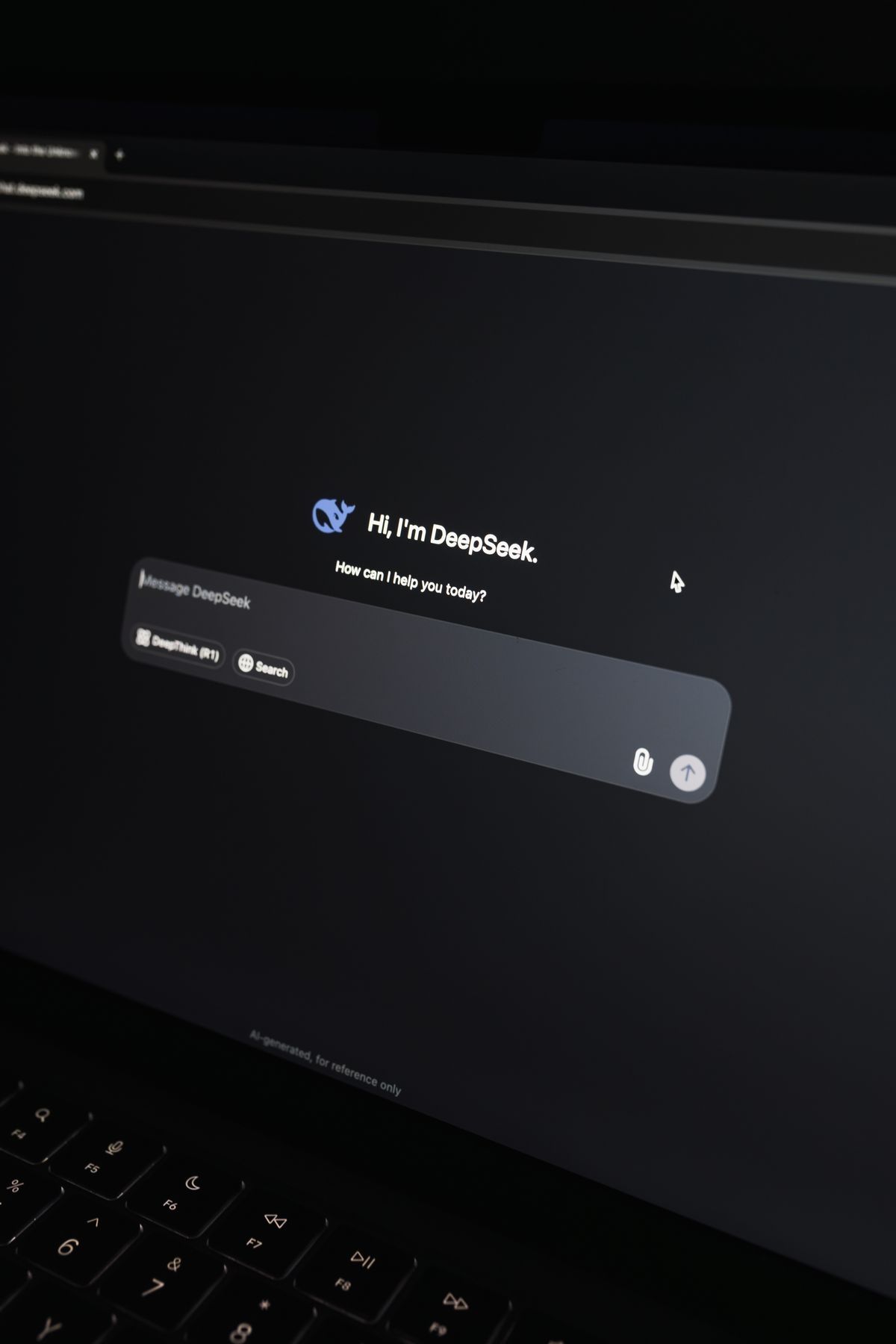
Whichever tool you choose, start with a small model, confirm it runs smoothly, and only then try a bigger one. A model that is too large for your RAM will crawl — or crash.
How to Run AI Models Locally on Mac
Macs are excellent for local AI, especially Apple silicon models (M1 and newer), because their unified memory is fast and efficient.
The simplest route is LM Studio, which runs beautifully on Mac. Download it, install it, search for a Gemma or Llama model that fits your memory, download it and chat. On a Mac with 16 GB of unified memory, a 4-billion-parameter model runs quickly and smoothly.
Ollama is also available for Mac and works the same way as on Windows — one command in Terminal downloads a model and starts a chat. Mac users can also try the AI Edge Gallery approach through compatible apps, but LM Studio or Ollama will give you the best experience on a desktop.
The Best Free Local AI Models to Try First
Not all models are equal. Here are four proven choices for beginners in 2026.
Gemma 4 E2B (Google). The best all-rounder for phones. Fast, sensible answers, and it can understand images as well as text. Start here.
Gemma 3 4B (Google). A step up in quality for computers with 12 GB of RAM or more. Better at longer writing and trickier questions.
Llama 3.2 3B (Meta). A strong, widely used open model. Good general knowledge and a huge community sharing tips and settings.
Phi-4-mini (Microsoft). Small but surprisingly clever, especially at maths, reasoning and coding help. A good pick for older or lower-powered devices.
All four are free to download and use. If one does not feel right, delete it and try another — swapping models takes only a few minutes.
7 Tips to Get Better Answers From Local AI
Local models reward good prompting. These tips make a real difference.
- Be specific. “Write a polite email to my landlord about a leaking tap” beats “write an email”.
- Give context. Tell the model who the answer is for and what tone you want.
- Break big jobs into steps. Ask for an outline first, then ask it to expand each section.
- Ask it to show its work. For maths or logic, “explain step by step” improves accuracy.
- Keep chats short. Local models have smaller memories than cloud ones, so start a fresh chat for each new topic.
- Use the right model for the job. A small model is fine for drafting; use a bigger one for research-style questions.
- Check important facts. Local models can be confidently wrong, especially about dates and current events. Verify anything that matters.
Common Problems and How to Fix Them
The model is very slow. You probably chose a model that is too big for your device. Switch to a smaller one — for example, from a 4-billion-parameter model to a 1-billion-parameter model — and close other apps to free up RAM.
The app crashes when loading a model. This usually means the device ran out of memory. Delete the model, restart your device, and try a smaller model.
Answers are short or strange. Small models sometimes need clearer prompts. Add detail to your question, and try rephrasing it. If the model keeps struggling, try a different one.
The download keeps failing. Model files are large. Use stable Wi-Fi, make sure you have enough free storage, and do not let your phone lock or sleep during the download.
The model says it does not know something recent. That is normal — local models only know what they were trained on, and they have no live internet. For current news or prices, use a web search instead. If you want to check how to keep your device fast while running these models, our guide on how to speed up your laptop in 2026 covers the settings that matter most.
The Bottom Line
Running AI models locally in 2026 is no longer a hobby for experts. With a free app and a few minutes, your phone or computer can answer questions, draft text and understand images entirely offline — privately and for free. Start with Google’s Gemma 4 E2B on your phone, or LM Studio on your computer, and see what it can do.
If you are curious about what else free AI can do, our roundup of the best free AI tools of 2026 is a good next read. And if you use AI tools for sensitive work, take a few minutes to read our guide on how to spot a phishing email — local AI keeps your prompts private, but your inbox still needs protecting.