
Learning how to speed up laptop Windows 11 is easier than most people think. A slow laptop is usually not broken — it is just weighed down by too many startup apps, a full drive, outdated software or settings that trade speed for looks. Work through the 12 fixes in this guide, in order, and most Windows 11 laptops feel noticeably faster within an hour. No extra software is needed for most of them, and nothing here deletes your personal files — though it is always wise to back up important files before changing anything on your computer.
Quick-start summary: the fastest wins first
If you only have 15 minutes, do these five things: restart your laptop properly, turn off unnecessary startup apps, free up space with Storage Sense, install Windows updates, and switch the power mode to Best performance. Those five fixes solve the majority of slow-laptop complaints. If your laptop is still slow after that, keep going: a malware scan, visual-effects changes, a browser clean-up, removing unused apps, updating drivers and checking your RAM and SSD health will deal with most of the rest. Only the last fix — a hardware upgrade — costs money.

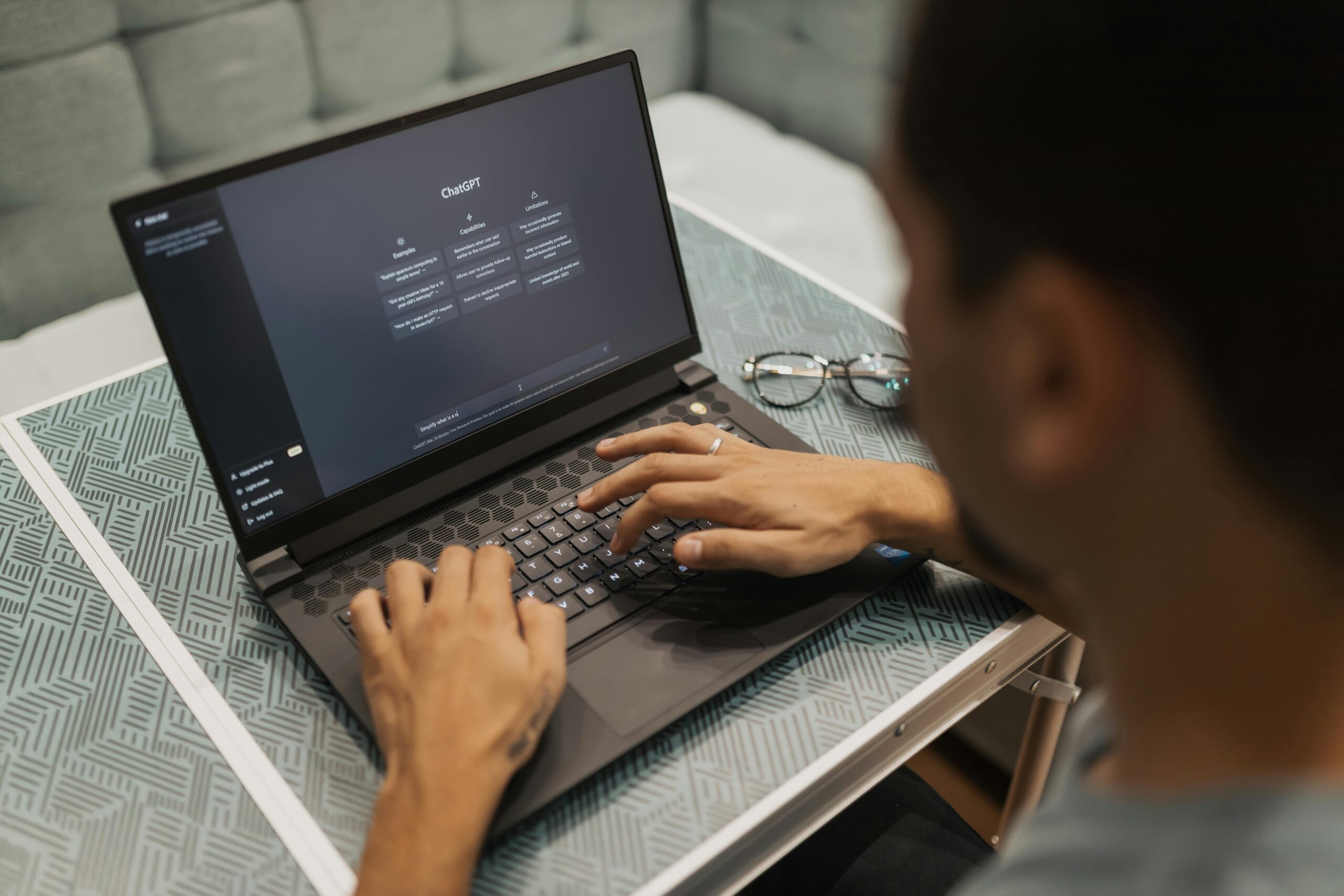
Photo: Tima Miroshnichenko / Pexels. A laptop keyboard in use.
The 12 fixes, in order
Each fix below has its own section with the exact menu paths in Windows 11. Work through them one at a time and test your laptop after each one — you may not need all 12.
1. Restart your laptop properly
Start here — it takes two minutes and fixes more than people expect. A restart clears temporary memory, ends stuck background processes and lets pending updates finish. Use a real restart, not just closing the lid: click Start > Power > Restart. If you normally use Shut down instead, note that Windows 11’s Fast Startup feature can keep some system state between shutdowns, so a proper Restart is the cleaner option when your laptop feels sluggish. If you have not restarted in a week or more, do this first and test before moving on.
2. Disable startup apps you do not need
Many apps set themselves to launch at startup, and each one slows your boot and eats memory all day. Go to Settings > Apps > Startup and switch off anything you do not need the moment Windows starts — chat apps, game launchers, cloud storage you rarely use and printer utilities are common culprits. Keep your security software enabled. You can also do this in Task Manager: press Ctrl + Shift + Esc, open the Startup apps tab, and disable items there. The apps still work when you open them manually; they just stop slowing down every startup.
3. Free up storage with Storage Sense
A nearly full drive makes Windows 11 noticeably slower, because the system has less room for temporary files and updates. Aim to keep at least 10–15% of your drive free. Go to Settings > System > Storage and turn on Storage Sense, which automatically clears temporary files, old Recycle Bin items and unused downloads. While you are there, open Temporary files, tick the categories you do not need — such as temporary files, delivery optimisation files and old Windows update files — and click Remove files. Your documents, photos and installed apps are not touched.
4. Install Windows updates
Outdated Windows versions can be slower and less secure, because Microsoft regularly ships performance fixes and driver updates. Go to Settings > Windows Update and click Check for updates. Install everything offered, then restart when asked — updates often only take effect after a restart. If an update is downloading in the background, your laptop may feel slow until it finishes, so let it complete before judging the result. The same idea applies to your phone: if it feels slow too, see our guide on why your phone is so slow and how to fix it.
5. Scan for malware
Malware and unwanted software can quietly use your processor and internet connection in the background. Windows 11 includes Microsoft Defender, so you do not need to buy anything to check. Go to Settings > Privacy & security > Windows Security > Virus & threat protection and run a Quick scan. If it finds nothing but your laptop is still slow, run a Full scan from the scan options — it takes longer but checks everything. Remove anything it flags, then restart and see how the laptop feels.
6. Adjust visual effects for speed
Windows 11’s animations, transparency and shadows look nice, but they cost performance on older or weaker laptops. To turn most of them off at once, open Settings > System > About, click Advanced system settings, and under Performance click Settings. Choose Adjust for best performance and click OK. If that makes things look too plain, you can re-enable the few effects you miss — such as smooth edges of screen fonts — from the same list. Alternatively, switch off transparency and animation effects individually under Settings > Accessibility > Visual effects.
7. Set the Best performance power mode
Windows 11 balances speed and battery life by default, and on battery power it may deliberately slow your laptop down. If you mostly use your laptop plugged in, switch to the fastest mode: go to Settings > System > Power & battery and set Power mode to Best performance. The laptop may use more battery and run its fan more often, so switch back to Balanced when you are working away from a charger. This one setting makes the biggest difference on laptops that were set to power saving without their owner realising.
8. Clean up your browser
Your browser is often the slowest app on your laptop — dozens of open tabs and extensions can use more memory than everything else combined. Close tabs you are not using, and remove extensions you do not recognise or no longer need: in Chrome or Edge, open the extensions page from the browser menu and remove anything unnecessary. Then clear the browser’s cached data under Settings > Privacy and security > Delete browsing data (choose cached images and files, and keep your saved passwords). Restart the browser afterwards. If you use several browsers, repeat this in each one.
9. Uninstall apps you never use
Old games, trial software and apps you installed once and forgot about take up disk space and sometimes run background services. Go to Settings > Apps > Installed apps, sort by size or by date installed, and uninstall anything you do not recognise or no longer use — click the three dots next to an app and choose Uninstall. Be careful with entries from your laptop manufacturer or Microsoft that you do not recognise; if you are unsure what something is, leave it alone or search its name first.
10. Update your drivers
Drivers are the software that lets Windows talk to your hardware, and old graphics, Wi-Fi or chipset drivers can cause slowness and crashes. The easiest way to update them is through Windows Update: go to Settings > Windows Update > Advanced options > Optional updates and install any driver updates listed there. For graphics, also check the app from your graphics maker — Nvidia, AMD or Intel — or your laptop manufacturer’s support app, which usually offers the newest drivers for your exact model.
11. Check your RAM and SSD health
If your laptop is still slow, find out whether the hardware is struggling. Press Ctrl + Shift + Esc to open Task Manager and look at the Performance tab: if memory is regularly above 85–90% while you work, you are running out of RAM. To check your drive, go to Settings > System > Storage > Advanced storage settings > Disks & volumes, click your drive and look at its health status. A drive showing warnings, or a laptop that still has a spinning hard drive (HDD) instead of an SSD, is a strong sign the hardware is the bottleneck. You can also run Windows Memory Diagnostic by searching for it in the Start menu to test your RAM for faults.

Photo: IT services EU / Pexels. Hands repairing a laptop circuit board.
12. When a hardware upgrade helps
If the software fixes are not enough, a hardware upgrade is the last step — and often the most effective one. The two upgrades that matter are more RAM and a faster drive: moving from 8GB to 16GB of RAM helps if Task Manager shows memory constantly full, and swapping a hard drive for an SSD makes the biggest single difference of all on older laptops. Both are inexpensive compared with a new laptop, but not every laptop can be upgraded — many thin models have soldered RAM or storage. Check your laptop’s manual or manufacturer website first, and if you are not comfortable opening the laptop yourself, ask a local repair shop for a quote. If the laptop is more than eight years old, has a failing drive and a weak processor, a new machine may be better value than upgrading.
Frequently asked questions about speeding up a Windows 11 laptop
Why is my laptop slow after a Windows update?
Updates often trigger background work — indexing, security scans and further downloads — that lasts for a few hours. Restart your laptop after the update and give it time to settle. If it is still slow after a day, work through the fixes in this guide, starting with startup apps and storage.
Will these fixes delete my files?
No. Restarting, changing settings, disabling startup apps and clearing temporary files do not touch your documents or photos. Uninstalling apps only removes those apps. Even so, keep a backup of important files before making changes, as a general habit.
How often should I do this maintenance?
Restart weekly, check startup apps and storage every month or two, and keep Windows and drivers updated as they arrive. A quick Storage Sense clean-up once a month is enough for most people.
Is it worth upgrading an old laptop or should I buy a new one?
If your laptop is under six years old and the only problems are speed and storage, an SSD and RAM upgrade is usually worth it. If the drive is failing, the battery is dead and the processor cannot run current software well, a new laptop is the better investment.
Conclusion: a faster laptop without buying a new one
Most slow Windows 11 laptops do not need replacing — they need a tidy-up. Restart properly, cut the startup apps, free up space, update Windows and your drivers, and set Best performance mode, and you will have fixed the problem for most people. Keep Storage Sense on and repeat the quick checks every month, and your laptop should stay fast. If your laptop is too old or too weak even after all 12 fixes, it may be time for a new machine — see our best budget gaming laptops under $1000 in 2026 if you want a fast replacement that can also handle games.