
You pick up your phone. You tap an app. Nothing happens for three full seconds. The keyboard lags behind your typing. Videos buffer. Scrolling stutters. And you find yourself asking the same question millions of people search every single day why is my phone so slow?
Here is the good news. In most cases your phone is not broken and you do not need to buy a new one. Even brand new devices slow down over time thanks to accumulated junk, background processes, and outdated settings but the fixes are free and you can feel the difference within minutes.
This guide covers every real reason your phone slows down in 2026 and exactly how to fix each one. Works for iPhone and Android. No technical knowledge needed.
Why Do Phones Slow Down in 2026?
Before fixing the problem it helps to understand what is actually causing it.
The number one reason phones slow down in 2026 is background AI processes. Modern smartphones run on-device AI models that consume 2 to 4GB of RAM continuously and combined with bloated apps, average phones hit their RAM limits within six months of use.
Other common causes include:
Full storage When your phone storage passes 90% full, performance drops sharply. Apps open more slowly, keyboards lag, and simple gestures stutter.
An old or degraded battery can cause your phone to automatically throttle itsprocessor speed to prevent sudden shutdowns.
Too many background apps. Apps running silently in the background consume RAM and processor power even when you are not using them.
Overheating Your phone slows down when it gets hot due to thermal throttling — a safety feature that reduces CPU speed to prevent hardware damage. iPhones throttle at 45°C, Android phones at 40 to 42°C.
Outdated software Running an old version of iOS or Android means missing performance improvements and bug fixes that could be making your phone faster.
Now let us fix every single one of these.
10 Real Fixes for a Slow Phone in 2026
Fix 1 — Restart Your Phone First
This sounds too simple to work. It genuinely is not. Restarting clears RAM and kills stuck background processes, and you should aim to restart your phone at least once a week for consistently better performance.
Most people never restart their phones. They leave them running for weeks or months with dozens of apps accumulating in the background. A simple restart clears all of that instantly.
How to restart:
- iPhone: Press and hold the side button and volume button → slide to power off → wait 30 seconds → turn back on
- Android: Press and hold power button → tap Restart
Do this right now before anything else. You may not need any other fix.
Fix 2 — Free Up Storage Space

When your phone storage passes 90% full, Android performance drops sharply — apps open slower, keyboards lag, and even basic gestures stutter because modern Android relies heavily on background caching for AI features and image processing. crimsonpotions
How to check and free storage:
On iPhone:
Settings → General → iPhone Storage
→ Delete unused apps
→ Enable Offload Unused Apps
→ Delete old photos and videos
On Android:
Settings → Storage
→ Tap Free Up Space
→ Delete junk files
→ Remove unused apps
Target: Keep at least 20% of your storage free at all times.
Fix 3 — Clear the Right Cache

Clearing the regular cache has minimal impact in 2026 because modern phones manage cache efficiently. What actually helps is clearing Other System Data on iPhone or Other storage on Android, which contains bloated AI training data and temporary files that accumulate over months.
On iPhone:
Settings → General → iPhone Storage
→ Scroll to find "Other System Data"
→ Force restart: Volume up, Volume down, hold Power
→ This clears it effectively
On Android:
Settings → Storage → Cached Data
→ Clear Cached Data
OR
Settings → Apps → Select App → Storage → Clear Cache
Fix 4 — Turn Off Background AI Features
This is the most important fix specifically for 2026 that most guides miss completely.
Modern smartphones run on-device AI models, including Apple Intelligence, Galaxy AI, and Gemini Nano, that continuously consume 2 to 4GB of RAM. The fix is to force stop AI features you do not use.
On iPhone — Disable unused Apple Intelligence features:
Settings → Apple Intelligence & Siri
→ Turn OFF Writing Tools (if not needed)
→ Turn OFF Image Playground
→ Turn OFF Priority Notifications
On Samsung Android:
Settings → Advanced Features → Galaxy AI
→ Disable features you never use
You will notice the difference immediately after doing this.
Fix 5 — Update Your Software

Running old software is one of the most common reasons phones feel sluggish. Every iOS and Android update includes performance improvements, bug fixes, and better memory management.
On iPhone:
Settings → General → Software Update
→ Download and Install latest iOS
On Android:
Settings → System → System Update
→ Check for Updates → Install
New Android versions in 2026 often include significant performance improvements. Check for updates monthly.
Fix 6 — Reduce Visual Animations

This is a small change that makes your phone feel dramatically faster because it removes the visual delays between every action you take.
On iPhone:
Settings → Accessibility
→ Motion → Enable Reduce Motion
On Android:
Settings → About Phone → Build Number
→ Tap 7 times to enable Developer Options
Settings → Developer Options
→ Window Animation Scale → set to 0.5x
→ Transition Animation Scale → set to 0.5x
→ Animator Duration Scale → set to 0.5x
These animation tweaks are completely free and reversible and work on any Android phone — delivering immediate results you can feel straight away.
Fix 7 — Limit Background App Refresh

Every app on your phone is doing things in the background, even when you are not using it, checking for notifications, refreshing content, and syncing data. All of this silently consumes RAM and battery.
On iPhone:
Settings → General
→ Background App Refresh
→ Set to Wi-Fi Only or turn off completely
On Android:
Settings → Apps → Select App
→ Battery → Background Activity
→ Turn off apps you rarely use
Keep background refresh on only for apps where you actually need instant notifications like WhatsApp or your email.
Fix 8 — Check Battery Health
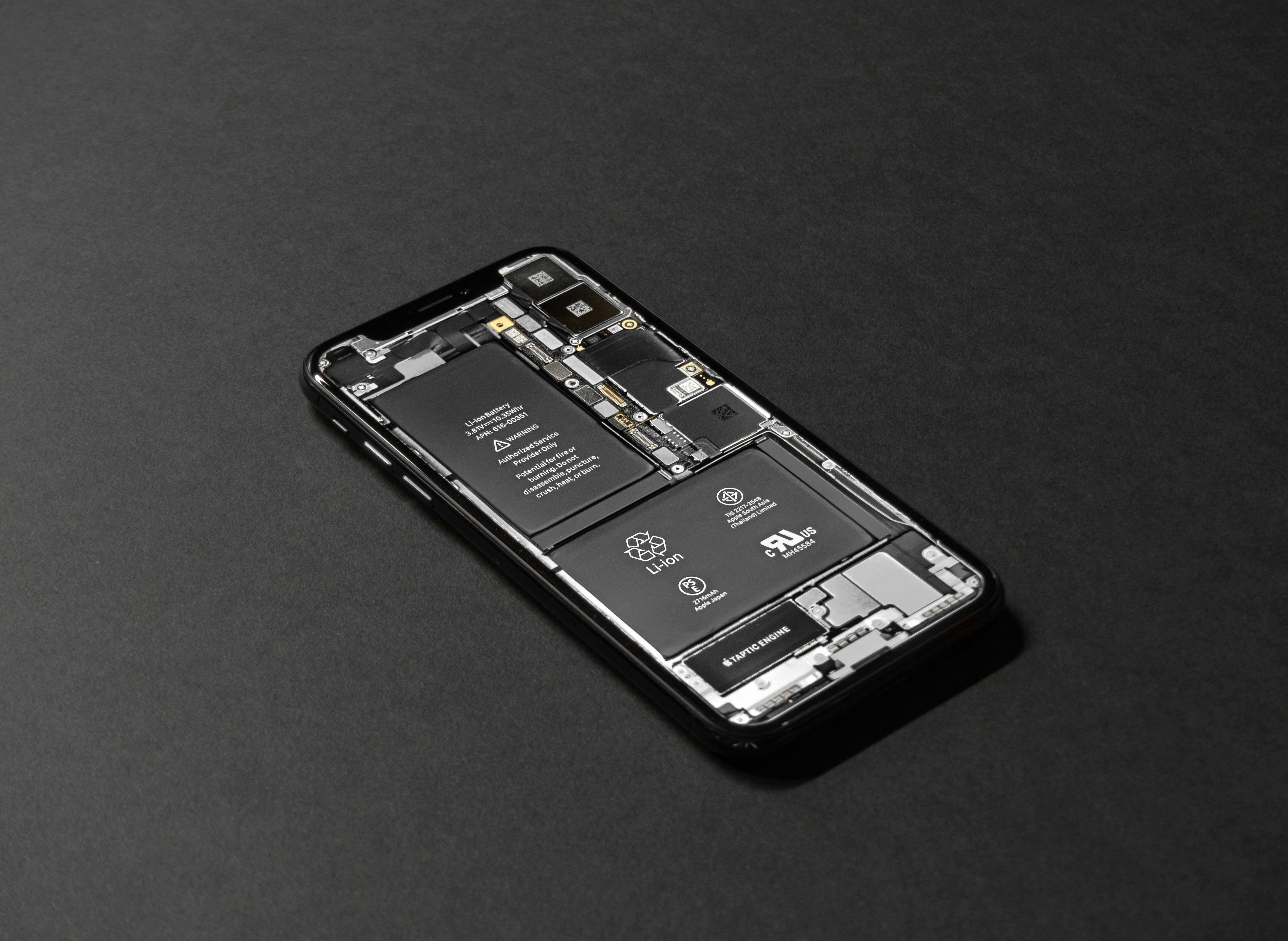
An old battery does not just drain faster it actively slows your phone down.
Replace your battery only if the health is below 80%. Above 80%, the battery is not the cause of the slowdown of background processes, and AI bloat is the real culprit.
Check battery health on iPhone:
Settings → Battery → Battery Health & Charging
→ If below 80% → Book battery replacement
→ Apple charges around $99 for iPhone battery replacement
On Android:
Dial *#*#4636#*#* in your phone app
→ Battery Information → Check battery health
OR
Settings → Battery → Battery Health (Samsung)
Fix 9 — Delete Bloatware and Unused Apps

Every installed app even if unopened can take up space and consume background resources. Go through your app list and be ruthless about deleting anything you have not opened in the past month.
Pay special attention to:
- Social media apps Facebook and Instagram are notorious for using massive background resources
- Games you no longer play
- Shopping apps you rarely open
- Pre-installed manufacturer apps you never use
On Android, specifically, manufacturer bloatware that came pre-installed cannot always be deleted, but can be disabled:
Settings → Apps → Select App → DisableFix 10 — Reset All Settings (Last Resort Before Factory Reset)

If nothing else has worked, this is the step most people skip straight to factory reset, but there is a better option first.
A better solution than factory reset is Reset All Settings on iPhone or Reset Settings on Android. This clears system bloat without deleting your data. After reset, do not restore from a backup, as this brings the bloat back. Reconfigure manually for lasting speed improvement.
On iPhone:
Settings → General → Transfer or Reset iPhone
→ Reset → Reset All Settings
→ Your photos and apps stay intact
→ Only settings reset to default
On Android:
Settings → General Management
→ Reset → Reset All Settings
Quick Reference — Which Fix for Which Problem
| Your Problem | Best Fix |
| Slow after months of use | Fix 2 — Free up storage |
| Slow since iOS/Android update | Fix 4 — Disable AI features |
| Everything feels laggy | Fix 6 — Reduce animations |
| Battery drains and phone slows | Fix 8 — Check battery health |
| Random slowdowns | Fix 1 — Restart weekly |
| Apps take long to open | Fix 3 — Clear correct cache |
| Phone hot and slow | Cool it down + Fix 4 |
Should You Buy a New Phone?
Before spending money on a new device — try every fix on this list first.
A slow iPhone does not always mean it is in the final stages of its life. In many cases, the problem is much less dramatic than people assume. Performance dips often occur for common reasons, including low storage, software issues, and background processes that can be fixed in minutes.
Only consider a new phone if:
- Battery health is below 80% and replacement cost is high
- Your phone has less than 3GB RAM (genuinely outdated for 2026)
- Software updates are no longer available for your model
- Physical damage is affecting performance
Otherwise, work through these ten fixes first. Most people find that their phone feels like new again without spending a dollar.
Frequently Asked Questions
How often should I restart my phone?
At least once a week. Daily is even better if you use your phone heavily.
Do phone cleaner apps actually work?
Most phone-cleaning apps do not work and often slow down phones by running ads and background processes. Built-in tools work better. iPhone Offload Unused Apps and Android Device Care are more effective than any third-party cleaner.
Why did my phone slow down after an update?
New software updates sometimes add AI features that run in the background. Follow Fix 4 to disable the ones you do not need.
How much storage should I keep free?
For a 256GB phone, keep at least 50GB free, roughly 20%. When storage passes 90% full, performance drops sharply on both iPhone and Android.